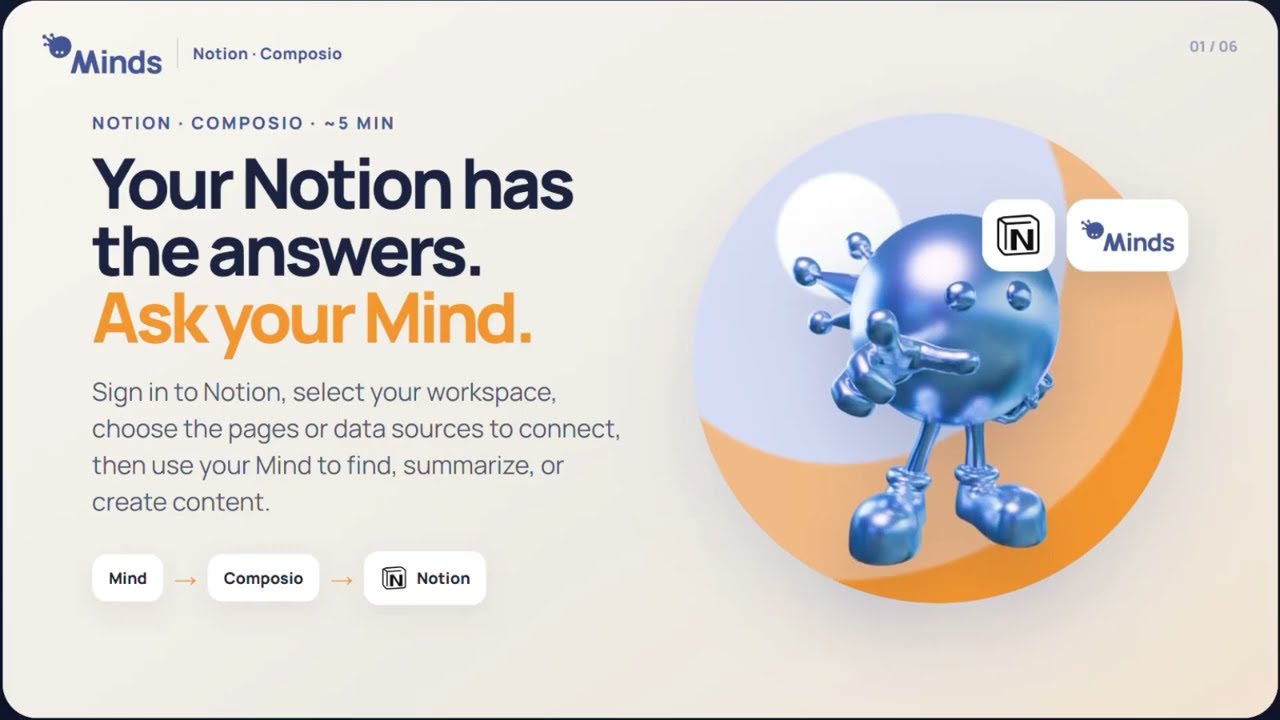
Connection Reference
| Connection | Provider |
|---|---|
| Notion | Composio |
Category: Connection
Difficulty: Basic
Time: Approximately 5 minutes
See It In Action
What You Need Before You Start
- A Notion account
- Access to the Notion workspace you want to connect
- A Mind
What Your Mind Can Do
- Find information: Find content across the Notion pages or data sources you approved.
- Summarize updates: Catch up on changes without opening page after page.
- Create content: Create new Notion content when the authorized connection allows it.
- Find documentation: Locate the latest documentation about a project or topic.
- Research related pages: Find Notion pages connected to an event, project, or subject.
- Work within your access: Your Mind works only with the Notion workspace and content you choose to share.
Step-by-Step Guide
Step 1: Ask Your Mind to Connect Notion
Start the conversation.
Sample Prompt:
“Connect to my Notion workspace.”
Your Mind creates a secure Notion authorization link through Composio.
Step 2: Open the Authorization Link
Open the secure authorization link from your Mind and sign in to the Notion account you want to connect.
Step 3: Select the Workspace
Choose the Notion workspace you want to use for this connection.
Tip: A connection is set up for the workspace you select, so confirm the correct workspace before continuing.
Step 4: Choose Pages or Data Sources
Select the pages or data sources you want your Mind to access from the selected workspace.
Tip: Share only the Notion content you want your Mind to work with.
Step 5: Allow Access
Review your selection and click Allow access to finish the authorization.
Step 6: Confirm and Test the Connection
Your Mind confirms when Notion is connected. Test the connection with something small and easy to verify.
Sample Prompt:
“List the first 3 page titles in my Notion workspace.”
If the returned titles are correct, the connection is working.
You can also test a create action:
Sample Prompt:
“Create a new Notion page called ‘Mind Connection Test’ and add today’s date.”
Step 7: Put the Connection to Work
Once connected, use natural language instead of opening page after page.
Sample Prompts:
- “What changed in my project Notion this week?”
- “Find the latest documentation about Project Atlas.”
- “Summarize the latest updates from the pages I shared.”
- “Find all Notion pages related to my September event.”
Ongoing Management
| Task | Weak prompt | Strong prompt |
|---|---|---|
| Check recent changes | “What changed?” | “What changed in my project Notion this week?” |
| Find documentation | “Find the docs.” | “Find the latest documentation about Project Atlas.” |
| Catch up on updates | “Summarize Notion.” | “Summarize the latest updates from the pages I shared.” |
| Research related pages | “Find event pages.” | “Find all Notion pages related to my September event.” |
Tips
- Make sure you select the correct Notion workspace before choosing content to share.
- Test the connection with a small, obvious request before relying on it for larger tasks.
- Your Mind can work only with the pages or data sources you approved in the selected workspace.
- Composio is the self-service connection route: you choose the workspace and control which Notion content your Mind can access.
- Use natural-language requests to find, summarize, or create content in Notion.