Skills Reference
| Skill | ID |
|---|---|
| Schoolwork Companion v1.3 | 58A9AFBA-E728-F111-AD1D-0EA9A5017E89 |
Category: Skill
Difficulty: Intermediate
Time: Approximately 2 minutes
See It In Action
What You Need Before You Start
- A Google account
- Google Drive access
- Google Sheets access
What Your Mind Can Do
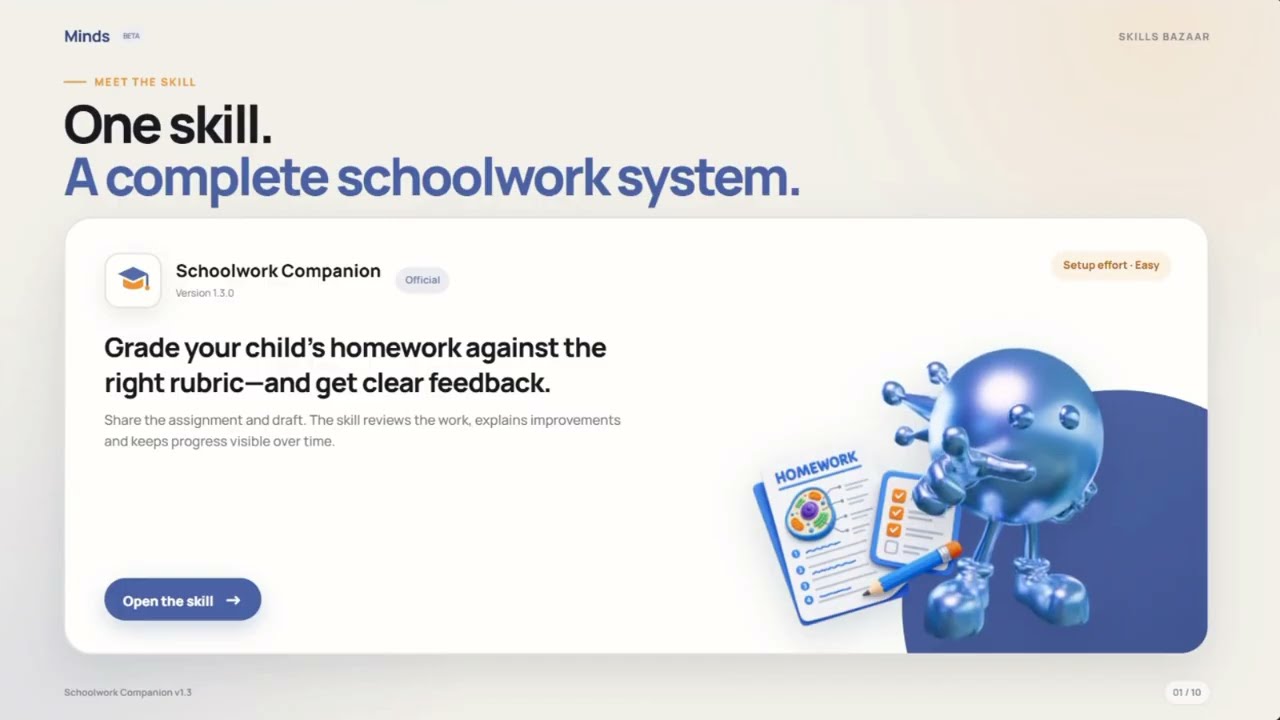
- Rubric-Aligned Grading: Grade homework using the correct IB, HKDSE, IGCSE, or A-Level rubric.
- Writing-Consistency Check: Compare a new assignment with the student’s previous work.
- Actionable Feedback: Explain strengths and give clear suggestions for improvement.
- Progress Tracking: Record scores, integrity results, strengths, and improvement areas in Google Sheets.
- Assignment Records: Save each review and its feedback in Google Drive for future reference.
Step-by-Step Guide
Step 1: Equip the Skill
Sample Prompt:
“Equip Schoolwork Companion v1.3 (ID: 58A9AFBA-E728-F111-AD1D-0EA9A5017E89).”
Step 2: Get the App Connection Links
Sample Prompt:
“Generate Minds OAuth links for Google Drive and Google Sheets.”
Step 3: Open the Links and Click Allow
Open each Minds OAuth link, sign in to the Google account you want to use, review the requested permissions, and click “Allow.” You can also connect the apps from Minds Bazaar → Apps by equipping Google Drive and Google Sheets to the same Mind.
Step 4: Confirm the Connections
Sample Prompt:
“Confirm Google Drive and Google Sheets are connected and ready for Schoolwork Companion.”
Step 5: Provide the Student and Assignment Context
Before the first review, provide:
- Student details: Name and subject.
- Curriculum context: IB, HKDSE, IGCSE, or A-Level. This determines which grading rubric the skill loads.
- Current assignment: Task instructions and the student’s latest draft.
- Previous work: Earlier responses clearly labelled Answer: for the writing-consistency check.
Sample Prompt:
“Set up Schoolwork Companion for Maya’s IB Biology HL homework. Her current assignment and previous Answer: samples are in this Drive folder: [Drive URL]. Create a Biology Exercise Bank in Google Docs and a Biology Progress Tracker in Google Sheets.”
Step 6: Grade the Homework and Add Feedback
Sample Prompt:
“Review Maya’s Cell Respiration draft in [Doc URL]. Compare it with her previous Answer: samples, grade it using the IB Biology HL rubric, add actionable feedback to the Doc, and record the result in [Sheet URL].”
Step 7: Review the Result
Your Mind returns a writing-consistency verdict, rubric-aligned grade, actionable feedback, and a new Progress Tracker entry. If the writing changes unexpectedly, the skill pauses the full grade and provides verification questions for the parent and student to discuss.
Ongoing Management
| Task | Weak prompt | Strong prompt |
|---|---|---|
| Set up a subject | “Set up Biology.” | “Set up Schoolwork Companion for Maya’s IB Biology HL homework. Create a Biology Exercise Bank in Google Docs and a Biology Progress Tracker in Google Sheets.” |
| Check writing consistency | “Check this writing.” | “Compare Maya’s draft in [Doc URL] with her previous Answer: samples and report whether the writing is consistent.” |
| Grade and give feedback | “Grade this.” | “Grade Maya’s Cell Respiration draft using the IB Biology HL rubric and add actionable feedback to [Doc URL].” |
| Track progress | “Save the result.” | “Add a row to [Sheet URL] with the task, integrity result, rubric level, score, strength, improvement area, and Doc URL.” |
Tips
- Confirm Google Drive and Google Sheets are connected before starting a review.
- Always specify the student, subject, and curriculum so the skill loads the correct rubric.
- Label previous student responses with Answer: so the skill can identify reference writing samples.
- Create separate Exercise Bank and Progress Tracker files for each subject.
- Include the exact Doc and Sheet URLs in prompts to avoid updating the wrong files.
- Review the feedback with the student; the parent remains responsible for the final decision.